9.5 Daily Workflow 
For our Spacewar! game, we created a dedicated package
Spacewar!.pck.st file. This is the way to go when writing
external package: define a dedicated package and from time to time
save your work with the save button in the Installed Packages
tool (See Figure 2.3).
Cuis-Smalltalk uses GitHub to host, version, diff its core development and to manage a set of external packages (i.e. code that is maintained independently and outside Cuis-Smalltalk but closely related to it).
Package files are simple text files, encoded in UTF-8 and handled without problems by GitHub. Cuis-Smalltalk uses the LF (ascii code 10) newline convention, as preferred in GitHub. This allows Git/GitHub to diff versions, and merge branches.
Separate GitHub repositories are used for projects, i.e. package or set of closely related packages that are always loaded and maintained together as a whole.
Your daily workflow with Cuis-Smalltalk to develop an external package will look like:
- Start with a standard, fresh, Cuis image. Never save the image.
- Set up your preferred version control system to manage your external packages. The recommendation is to use a GitHub repository with a name beginning with ’Cuis-Smalltalk-’, so it will be easy for anybody to find it. But beside this consideration, using any other version control system is fine.
- Install the necessary packages from the Cuis-Smalltalk Git repositories.
- Develop. Modify and/or create packages.
- Save own packages (to your preferred repositories).
- add / commit / push accordingly to your version control system
- Fileout changes that are not part of any package. These are automatically captured in numbered changesets, separated from changes to packages.
- Exit the image. Usually without saving.
Not to save the image is just best practice advice for you when your primary goal is to create new code. We already discussed the caveats of saving the image concerning code management (See The Image). But from time to time, you’ll find yourself in the position of an explorer when you open multiple code browsers and workplaces to figure something out. In this case, the state of the system, the open windows and code snippets, holds the value you care about, and saving the image is the right way to preserve the system’s state. 28
9.5.1 Automate your image 
As described in the daily workflow, it is a good habit to not save the whole image but only the modified package of the edited source code. However, each time we start a coding session, it is tedious to set up the image to fit our personal needs and taste.
Things one may want to personalize in the image are:
- Preferences adjustments,
- Placement of tools like System Browser, Workspace, Transcript,
- Default contents in the Workspace, ready to be executed,
- Installation of Packages.
We want to record these image preferences in a
setUpEnvironment.st script to be executed at start up. On
GNU/Linux, you ask Cuis-Smalltalk to run a script with the -s, for
example squeakVM Cuis5.0.image -s setUpEnvironement.st where
setUpEnvironement.st. is a file containing Smalltalk code. A
real life example may look like:
cd Cuis-Smalltalk-Dev
./CuisVM.app/Contents/Linux-x86_64/squeak CuisImage/Cuis7.9-7977 \
        -s setUpEnvironment.st
We describe in detail an example of a set up script organizing the environment as seen in Figure 9.13. It is interesting Smalltalk code poking around heterogeneous areas of Cuis-Smalltalk like the developer tools, the Morph system, the preferences and collection handling.
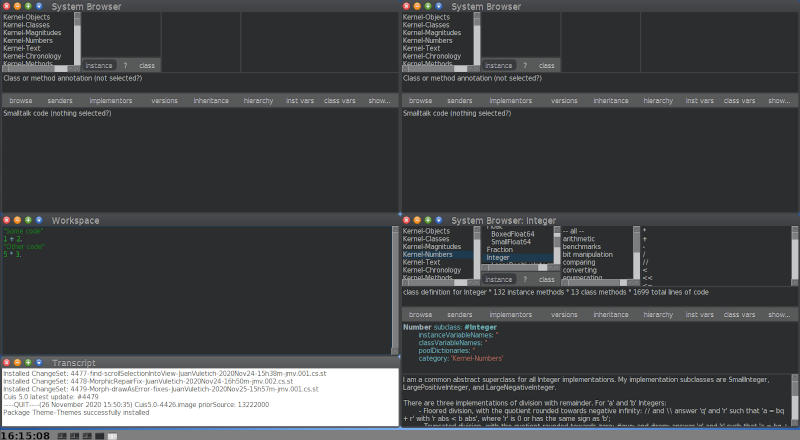
Figure 9.13: Environment of an image started with the set up script
First, we set a few preferences, not related to the GUI:
| world morph area extent |
"Report by any mean error"
Transcript
   showOnDisplay: false;
   logToFile: true;
   logToStdout: true.
"Install change set"
ChangeSet installNewUpdates.
"System configurations"
Utilities setAuthorName: 'Oliver Lawrence Dupont' initials: 'old'.
Preferences at: #logDebuggerStackToFile put: true.
Preferences at: #autoNumberUserChanges put: false.
Preferences at: #focusFollowsMouse put: true.
"Install package and your code"
Feature require: #'Theme-Themes'.
"Feature require: #'MyPackage'."
We continue with the operations related to the GUI. Let’s start
by removing the open windows. The code is placed in a block which is
sent the message #fork in order to wait for the environment to be
properly initialized.
"Morphic operation, to handle with care"
world := UISupervisor ui.
[
    Display fullScreenMode: true.
    (Delay forSeconds: 1) wait.
    UISupervisor whenUIinSafeState: [
        (world submorphs reject: [:aMorph | aMorph is: #TaskbarMorph])
            do: [:each | each delete].
    ]
] fork
We first request Cuis-Smalltalk to display itself full screen, the delay is
needed to ensure the Cuis-Smalltalk window is full screen before proceeding to
the remaining part of the set-up script. The whole user interface
world of Cuis-Smalltalk is a kind of Morph, a WorldMorph
instance. Its submorphs are windows, menus, the taskbar or any kind of
morph the user can interact with. To access this WorldMorph
instance you ask to the UISupervisor with the #ui
message. Once we select all the morphs in the world but the taskbar –
really #reject: it – we #delete them from the world.
Next, we change the preferences related to the GUI. Place the following code after the line above that deletes the children.
"Change to Dark theme"
DarkTheme beCurrent.
"Adjust font size"
Preferences at: #defaultFontSize put: 12.
"Adjust taskbar size"
morph := UISupervisor ui taskbar.
morph scale: 1 / 2.
We required earlier Theme-Themes package; as it is not installed on the default image, it will be searched on the disk for installation. Finally, we update the scale of the taskbar.
Before installing the tools, we ask a RealEstateAgent the free
area. Sadly this agent does not take into consideration the area
occupied by the taskbar, so we need to tweak its answer. Then we
compute a quarter of this free area extent (half in width and half in
height make a quarter of the whole free area):
Place the following code after the previous code.
"Compute the available free space for windows placement"
area := RealEstateAgent maximumUsableArea
   extendBy: 0 @ morph morphHeight negated.
extent := area extent // 2.
Now we are ready to install a few tools. First three browsers each occupying a quarter of the screen:
"Open a few System Browsers"
Browser open
   morphPosition: 0 @ 0;
   morphExtent: extent.
Browser open
   morphPosition: area width // 2 @ 0;
   morphExtent: extent.
"Open a System Browser on a specific class"
morph := Browser open
   morphPosition: area extent // 2;
   morphExtent: extent.
morph model setClass: Integer selector: nil.
Then in the remaining free quarter, we install a workspace occupying two thirds of the area and a transcript one third. The workspace is installed with some default contents. We need to hack a bit because when asking for a new Workspace, Cuis-Smalltalk does not answer the created instance, we have to search it in the windows of the world.
Place the following code after the previous code.
"Open a Workspace with some default contents"
morph := Workspace open.
morph model actualContents: '"Some code"
1 + 2.
"Other code"
5 * 3.'.
morph
   morphPosition: 0 @ (area height // 2);
   morphExtent: extent x @ (2 / 3 * extent y).
"Open a transcript for logs"
Transcript open
   morphPosition: 0 @ (area height // 2 + (2 / 3 * extent y));
   morphExtent: extent x @ (1 / 3 * extent y).
Of course you should adjust the argument of the #actualContents:
message to meaningful code for your usage.
Visit the set-up environment script appendix for the complete code.