4.5 Memory Game 
To illustrate user interactions with the mouse, we present in this section a memory color game. This is a board game where a collection of cards is presented to the user with a common neutral color; each card has its own color, hidden at game startup. The user must find the cards sharing the same color. When the user clicks on a card, its color is revealed; the card with the matching color must be found. When a pair of cards is found, the pair is no longer playable; if not, the cards’ colors are hidden again, or flipped. Two kinds of morphs are used in the design of the game: a SystemWindow and a PluggableButtonMorph. The complete source is presented in the appendix Memory Game v1 of the book. We will not present every part of the code design, but we will focus on the illustrative ones regarding the topic of this chapter.
The game is started with:
MemoryGameWindow new openInWorld
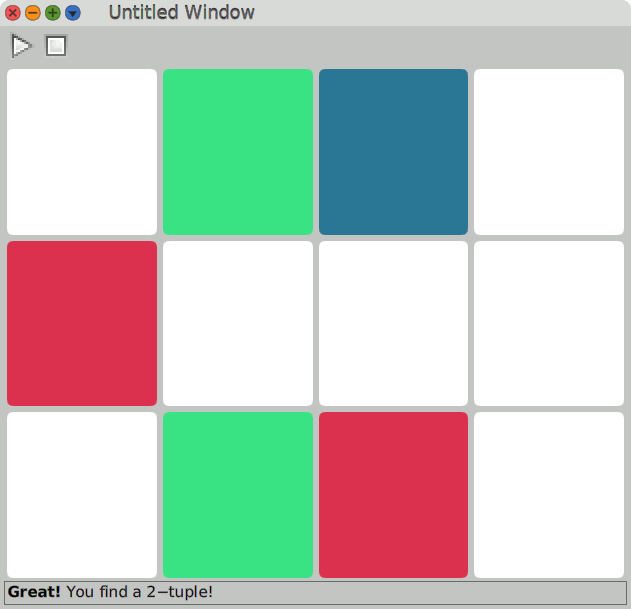
Figure 4.13: Memory color game
The Cards 
What are the attributes we want a card to have? We need a card to have a specific card color and a status flag to indicate if we are done with the card, meaning we have found a matching pair. The card is a morph able to paint itself with a color. It reacts to user clicks to flip itself between its card color and the common neutral color.
What we want is a kind of button:
PluggableButtonMorph subclass: #MemoryCard
   instanceVariableNames: 'cardColor done'
   classVariableNames: ''
   poolDictionaries: ''
   category: 'MemoryGameV1'
The default color, common to all cards, is white:
defaultColor
^ Color white
A card knows it is flipped when its cardColor is the color of the button:
isFlipped
^ color = cardColor
And the card can flip between the default color and its own cardColor:
flip
color := self isFlipped ifTrue: [self defaultColor] ifFalse: [cardColor].
self redrawNeeded
color is used to paint the button; when adjusting it, we send the message #redrawNeeded to the button to force it to redraw.
The Board 
What are the attributes of the game board? It knows about the playground, set to a specific size, where the cards are presented to the user. It communicates messages through its status bar and it knows if the user is playing or not. The game is presented in a window with all these attributes:
SystemWindow subclass: #MemoryGameWindow
   instanceVariableNames: 'size cards tupleSize statusBar playground playing'
   classVariableNames: ''
   poolDictionaries: ''
   category: 'MemoryGameV1'
The board presents a toolbar, its playground, and a status bar in a window using a column LayoutMorph:
initialize
super initialize.
size := 4 @ 3.
tupleSize := 2.
playing := true.
playground := LayoutMorph newColumn.
self installToolbar.
self addMorph: playground.
self installCards.
self installStatusBar
Indeed, by default, a SystemWindow comes with a layout, set as a column. The playground is also a column layout; the cards are arranged into several rows.
Installing the Game 
Cuis-Smalltalk does not come with any notion of a toolbar, but it is fairly easy to create one with a row LayoutMorph and some buttons:
installToolbar
| toolbar button |
toolbar := LayoutMorph newRow separation: 2.
button := PluggableButtonMorph model: self action: #startGame ::
   enableSelector: #isStopped;
   icon: Theme current playIcon;
   borderWidth: 2;
   borderColor: Color black;
   setBalloonText: 'Play the game';
   morphExtent: 32 asPoint.
toolbar addMorph: button.
...
self addMorph: toolbar layoutSpec: LayoutSpec new useMorphHeight
Observe enableSelector: #isStopped; indeed the “Play” button is only active when the game isStopped. The same applies with the “Stop” button – not shown here. The toolbar height – row layout – is shrunk to the height of its submorphs; to do so, the toolbar is added to the window with the appropriate specification LayoutSpec new useMorphHeight.
We first clear the playground, then install the cards in several rows. We remember each card’s position which we can access via x and y coordinates by storing the cards in a special Array2D array. The colors to be used are randomly shuffled and then assigned in the inner #to:do: block:
installCards
| colors  row |
playground removeAllMorphs.
cards := Array2D  newSize: size.
colors := self distributeColors shuffled.
1 to: size y do: [:y |
   row := LayoutMorph newRow.
   1 to: size x do: [:x | | card |
      card := MemoryCard model: self action: #flip: actionArgument: x@y.
      card layoutSpec: (LayoutSpec proportionalWidth: 1 proportionalHeight: 1).
      card cardColor: colors removeFirst.
      row addMorph: card.
      cards at: x@y put: card ].
   playground addMorph: row ]
We make the card interactive by using the PluggableButtonMorph’s model:action:actionArgument: selector. When clicked, the message #flip: is sent to the game window with the card’s x and y position in the cards array and playground:
MemoryCard model: self action: #flip: actionArgument: x@y
Game Logic 
The core of the game logic is in the flip: method. It first flips and locks6 the clicked card:
flip: position
| flippedCards |
(cards at: position) flip; lock.
Then it detects if all the flipped cards share the same color. To do so, we perform a clever trick in Smalltalk: we collect all the colors of the flipped cards, then convert the collection of colors into a Set instance; all duplicated colors are removed. If the size of the resulting set is not 1, it means the cards have different colors. In that case, we inform the user with a message, then unflip and unlock the clicked cards:
flippedCards := self flippedCards.
(flippedCards collect: [:aCard | aCard cardColor]) asSet size = 1 ifFalse: [
   "Give some time for the player to see the color of this card "
   self message: 'Colors do not match!'.
   self world doOneCycleNow.
   (Delay forSeconds: 1) wait.
   " Colors do not match, unflip the flipped cards and unlock "
   flippedCards do: [:aCard | aCard flip; unlock].
   ^ self]
If the colors match, we check if we have reached the tupleSize association count – initialized by default to 2, to make pairs of cards. If so, we make the cards flash and mark them as done so they can’t be played anymore:
   flippedCards size = tupleSize ifTrue: [
      " We found a n-tuple! "
      self message: 'Great!' bold, ' You found a ', tupleSize asString, '-tuple!'.
      flippedCards do: #flash.
      flippedCards do: #setDone.
At this point in the game logic, in the event of a game win, we inform the user and update the game status:
      self isGameWon ifTrue: [
         self message: 'Congratulations, you finished the game!' bold red.
         playing := false] ]
Messages to the User 
The user is kept informed during gameplay by displaying messages in the status bar. This is set up at initialization time in the following method:
installStatusBar
statusBar := TextParagraphMorph new
   padding: 2;
   color: Color transparent;
   borderWidth: 1;
   borderColor: self borderColor twiceLighter ;
   setHeightOnContent.
self addMorph: statusBar layoutSpec: LayoutSpec new useMorphHeight.
self message: 'Welcome to ', 'Memory Game' bold
Its companion method #message: writes a new text message by updating the contents of the TextParagraphMorph instance:
message: aText
statusBar contents: aText ;
   redrawNeeded
A message sent to the status bar can be more than just a plain string; it can be a Text instance with styling attributes. To do so, we send specific messages to a string. For example, ’hello’ bold converts the ’hello’ string to a Text instance set to a bold style.
Examples of styling:
'Hello' red bold.
'Hello ' italic, ' my love' red bold.
To discover more message style attributes, browse the method categories text
conversion ... of the CharacterSequence class.
Access and Test 
In the core logic of the game, we access the flipped cards in the playground by selecting the cards both not done and flipped:
flippedCards
^ cards elements select: [:aCard | aCard isDone not and: [aCard isFlipped] ]
The Array2D instance of the cards variable offers access to its cells with x and y coordinates; however, it does not offer the full range of the Collection protocol, particularly the select: method. Nevertheless, its underlying elements attribute is an Array, which is part of the Collection hierarchy; we use it to get the full power of the Collection protocol. We proceed the same way to select the done cards:
doneCards
^ cards elements select: #isDone
And undone cards are selected by a removal operation, prone to resist code evolution in the card protocol:
undoneCards
^ cards elements asOrderedCollection
   removeAll: self doneCards;
   yourself
In the core logic of the game, we test if the game is won by testing if all the cards are done. In that case, this count is equal to the number of cards in the game:
isGameWon
^ (cards elements select: #isDone) size = (size x * size y)
The remaining methods of the game do not require comment; they can be read in the complete source code of the Memory Game v1.